Free for Windows 11· v0.6.26

The Start menu
Windows 11 deserves

A free, lightweight Start menu replacement for Windows 11. Pin apps exactly where you want them, group them in folders, add desktop widgets and snap windows into custom zones, without touching a single Windows system file.

v0.6.26 · 51 MB · Windows 11 · No admin rights · No account needed · Try it in your browser →

  • 100% free
  • No ads
  • No account needed
  • No telemetry
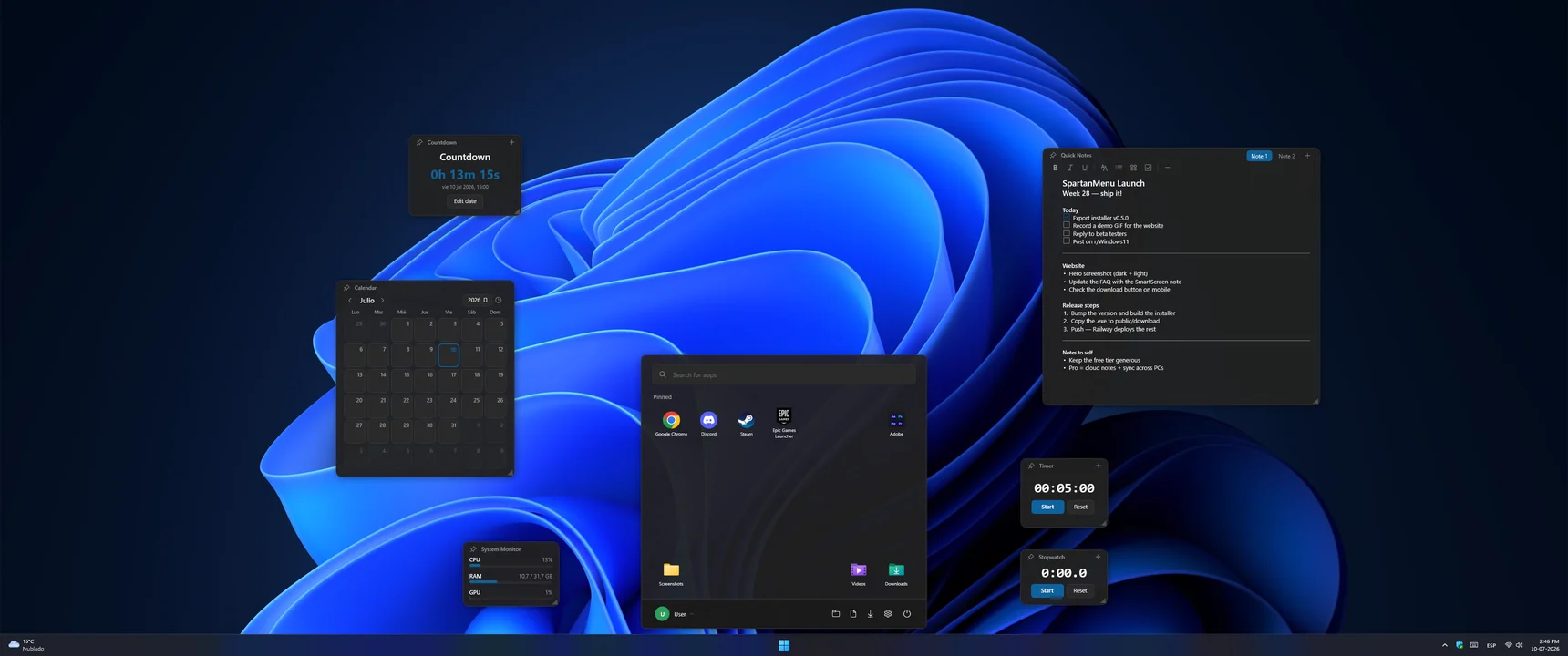
Real screenshot: the panel above your taskbar
  • ≈30 MB

    of RAM at idle

  • ~0%

    CPU at idle

  • 0

    trackers or ads, and no account needed

  • 51 MB

    installer, nothing else to download

Measured on SpartanMenu 0.6.26 with the menu closed (Windows 11 Pro, 3440×1440, five widgets enabled): 12–33 MB of private working set — the Memory column in Task Manager — and about 0.2% of one CPU core. Memory rises while the menu is open and is released again once it goes idle.

Video tour

See SpartanMenu in action

A short walkthrough: the menu, the widgets, Window Snap, and what it does not do to your PC.

English narration · subtitles in English and Spanish

Why SpartanMenu

Light, private and safe by design

A tool that lives on your taskbar has to earn its place. Here is how SpartanMenu does it.

Light on your PC

It sits quietly in the background and stays out of the way.

  • About 30 MB of RAM and ~0% CPU at idle
  • Gives memory back by itself when you close the menu
  • Steps aside for full-screen games and videos
  • One self-contained installer: no runtimes, no extra downloads
Private by default

There is nothing to opt out of, because nothing is collected.

  • No telemetry, analytics or usage tracking in the app
  • No account needed, no sign-in and no ads
  • Your pins, notes and settings are files in your user folder
  • The only automatic connection is the check for updates

Safe and reversible

It works with Windows instead of patching it.

  • No code injected into explorer.exe, no modified system files
  • Quit it from the tray and the original Start menu is back instantly
  • Updates are verified with SHA-256 before they install
  • Clean uninstall that asks before deleting your data

Read the privacy policy →

Features

Everything your Start menu should have always been

Built to be fast, yours, and invisible when you don’t need it.

A grid that fits you

Choose how many columns and rows your menu has: from compact to huge.

App folders

Drag one app onto another and the folder is created, with a mosaic preview.

Pin apps and folders

Shortcuts to your apps and favorite folders, always one click away.

Place everything your way

Move every app to whatever spot of the menu you want, with total freedom.

Truly minimalist

No recommendations, no ads and no Windows noise: just your apps.

Instant search

A fast, clean search box that finds apps and tools as you type.

Colors & themes

Auto light/dark, an accent color, and a color tint for the whole panel.

Profiles for a shared PC

Each person gets their own pins, notes, widgets, theme and language.

One-click updates

New versions install in one click and are verified before they run.

Widgets

Your desktop, more useful

Floating widgets that show up with the panel and hide with it. From a PureRef-style reference board to quick notes: turn them on, place them anywhere, and find more in the built-in catalog.

Markdown notes, calendar, system monitor, timer and more, all at once on your desktop

Reference Board

Drop or paste images (and GIFs) onto a zoomable canvas, PureRef-style. Crisp pixel-art, no blur.

Quick Notes

Markdown notes that save themselves.

Calendar

Your month at a glance.

System Monitor

CPU, memory and more in real time.

Stopwatch

Time anything with one click.

Timer

A countdown for whatever you need.

Countdown

Days left until that date.

Install community widgets

And growing

Every community widget is a single file you drop in your widgets folder. Browse, subscribe and manage them all from the built-in catalog. An online widget store and an AI widget builder are on the way.

Window Snap

Arrange your windows like a pro

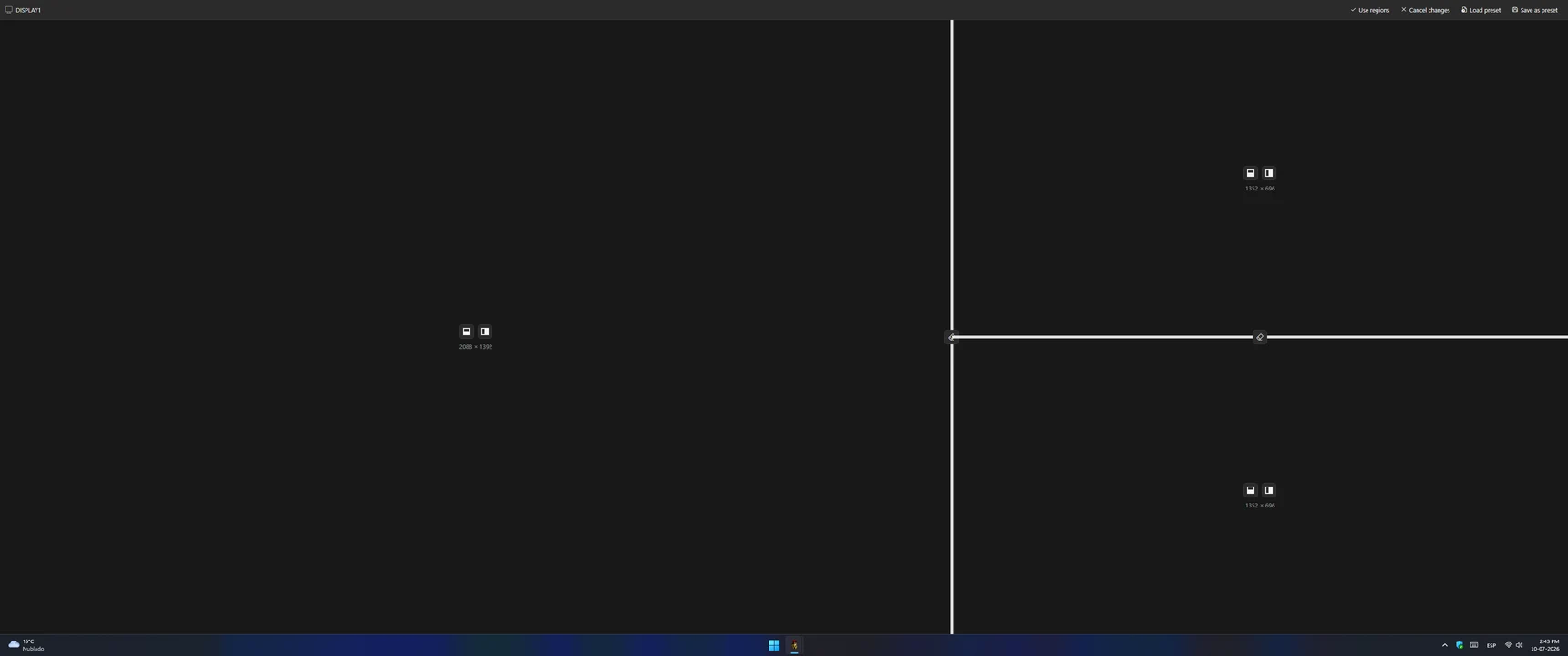
Define custom regions per monitor and your windows snap into place.

  • Custom regions per monitor, with a full-screen visual editor
  • Hold Shift while dragging (or enable it always) and drop the window into its region
  • Ctrl+Alt+arrow shortcuts to move the active window between regions
  • Save and load layout presets
  • Great for ultrawide and multi-monitor setups
The full-screen region editor: split, drag the dividers and save presets.

Compare

How it stacks up against the alternatives

The best-known Start menu replacements for Windows 11, side by side.

What we compareSpartanMenuStart11StartAllBackOpen-ShellExplorerPatcher
PriceFreePaid: about $7 per year or about $10 one-time, for one PC (30-day trial)Paid: $4.99 one-time, for one PC (free trial)FreeFree
Source codeClosed source (freeware)Closed sourceClosed sourceOpen source (MIT)Open source (GPL-2.0)
Windows versionsWindows 11Windows 10 and 11Windows 11Windows 7 to 11Windows 11 (fewer features on Windows 10)
How it hooks into WindowsA regular app placed over the Start button: no code injected into explorer.exe, no modified system filesNot stated by the vendorNot stated by the vendor (it says it runs no extra processes or services)Not stated in its documentationAlters Explorer’s code and memory, according to its own wiki
Desktop widgetsYes: notes, calendar, system monitor, timers, reference boardNot on the desktop (the version 3 beta adds widgets inside the Start menu)Not listedNot listedNot listed
Custom snap zonesYes, per monitorNot listedNot listedNot listedNot listed
Account or activationNone neededProduct key plus an email address to activateLicence key, activated onlineNoneNone
Read the full comparison →

Facts about other products were checked on November 12, 2026 against their official sites and repositories.

Get started

Up and running in under a minute

  1. 1

    Download

    Grab the installer: a single 51 MB file, free, with nothing bundled.

  2. 2

    Install

    Run it; it does not ask for administrator rights. If SmartScreen appears, choose "More info" and then "Run anyway" (code signing is on the way).

  3. 3

    Press the Windows key

    Your new menu opens from the Start button or the Windows key. Right-click it to open its settings.

Free. For real.

No ads, no account needed, no telemetry, no fine print. SpartanMenu is free, and the essentials will stay free forever.

  • No ads
  • No account needed
  • No telemetry
  • Clean uninstall

The future

SpartanMenu Pro, coming soon

We’re building cloud features for those who want more. Everything that’s free today stays free.

Coming soon

Notes in the cloud

Your Quick Notes backed up and available anywhere.

Coming soon

Sync across PCs

Pins, layout and settings in sync on all your machines.

Coming soon

Layout backup

Reinstall Windows and get your menu back exactly as you left it.

Interested? Tell me what you’d like to see →

FAQ

Frequently asked questions

What is SpartanMenu?

SpartanMenu is a free Start menu replacement for Windows 11, made by KickStone Studio. It opens when you click the Start button or press the Windows key and gives you a clean panel with your apps pinned exactly where you want them, folders, instant search, desktop widgets and custom zones for snapping windows.

Is it really free?

Yes. SpartanMenu is free, with no ads and no account needed. In the future there will be an optional Pro subscription with cloud features (notes, sync) that will use an account, but everything that’s free today stays free and keeps working without one.

How is it different from Start11, StartAllBack or Open-Shell?

SpartanMenu is free and focuses on one job: a clean, modern Start menu that leaves the rest of Windows alone. It runs as a regular app over the Start button, never injects code into explorer.exe, and quitting it brings the original menu back instantly. It also includes floating desktop widgets and custom snap zones. Start11 and StartAllBack are paid products (StartAllBack also restyles the taskbar and File Explorer), and Open-Shell is a free, open-source, classic-style menu.

Read the full comparison →

How much memory and CPU does it use?

Very little. At idle it sits at around 30 MB of RAM (12–33 MB in our measurements of version 0.6.26, as reported by Task Manager) and practically 0% CPU. Memory rises while the menu is open and is released again when you close it.

Does SpartanMenu collect any data?

No. The app has no telemetry, analytics or ads, and it needs no account. Your pins, notes and settings are stored on your own PC. The only automatic connection is the check for new versions against spartanmenu.app. The website does use visit analytics and an anonymous download counter; the privacy page explains both in detail.

Read the privacy policy →

Which Windows versions does it support?

Windows 11 (thoroughly tested on 25H2 with the centered taskbar). Windows 10 is not supported.

Is it safe to install?

SpartanMenu doesn’t inject code into explorer.exe or modify system files. The installer isn’t digitally signed yet, so SmartScreen may show a warning: click "More info" and then "Run anyway". Code signing is on the way, and the download page publishes the installer’s SHA-256 so you can verify it.

Go to the download →

Does it replace my Start menu forever?

No. It’s 100% reversible: SpartanMenu overlays the Start button while it’s running. Quit it from the tray icon and the original Windows menu is back instantly.

Does it work with multiple monitors?

Yes. The menu opens on the monitor your cursor is on, and Window Snap regions are defined per monitor, so every screen can have its own layout.

How do updates work?

SpartanMenu checks for new versions by itself and updates in one click from Settings → About or from the tray icon. Every update is verified with SHA-256 before it is installed.

Do I need an account?

No. Install it and that’s it. Nothing leaves your PC: your pins, notes and settings are stored locally. If the optional Pro tier arrives with cloud features, an account will be needed only for those; the app itself will always work without one.

How do I uninstall it?

Like any app: Settings → Apps → SpartanMenu → Uninstall. The uninstaller closes the app, removes everything and asks whether you also want to delete your local data.

Is it open source?

No. SpartanMenu is closed-source freeware. Community widgets, however, are plain JSON files, so anyone can create and share their own.